💻 AI for PowerShell Scripting: Generate, Fix & Automate Scripts (2026 Guide)
TL;DR: Use AI to write, debug, and automate PowerShell scripts safely — even if you’re not a developer. This guide shows you the best tools for each task, plus prompts, Dry Run patterns, and real‑world examples.
If you want to use AI to write, debug, or automate PowerShell scripts, this guide shows you exactly how — and which tools perform best in real Windows environments.
You shouldn’t be writing PowerShell from scratch anymore. Modern AI tools can generate, debug, and secure scripts — whether you’re writing your first automation or refactoring a 400-line monster. The shift is toward AI‑First Scripting — you describe the logic, and the AI handles the verbose syntax and .NET complexities.
📋 Looking for real scripts? See PowerShell AI Examples for copy‑ready prompts and safe script patterns you can use immediately.
⚡ Want to generate a script right now? Try the AI PowerShell Script Generator for a guided, step‑by‑step workflow.
🏆 The 2026 PowerShell AI Power Rankings
Here’s how the major AI tools stack up for real‑world PowerShell scripting in 2026.
Short version: Use Claude for complex logic, Cursor for deep development work, and Copilot for quick Windows-native fixes.
| Tool | Best For… | Why it Wins |
|---|---|---|
| Claude | Logic & Accuracy | The most reliable for long scripts and multi-step automation. It has the lowest rate of “syntax drift” in complex loops. |
| Microsoft Copilot | Free & Practical | Native to Windows. Best when given context about your version and modules. Excellent for “Explain this script.” |
| Cursor + Copilot | Pro Workflow | Reads your entire local repo. It can run scripts and fix errors in a tight, integrated loop. The choice for power users. |
| ChatGPT | Quick Snippets | The fastest for one-liners, regex help, and troubleshooting specific .NET error codes. |
| Gemini | Community Knowledge | Strongest at finding and explaining “in-the-wild” scripts from community forums and obscure documentation. |
These rankings focus on real‑world PowerShell performance: accuracy, safety, debugging, and workflow integration.
🛠️ The “Busy Human” PowerShell Workflow
1. The Expert Persona Prompt
Don’t just ask for a script. Ground the AI first.
Copy/Paste this into Claude or ChatGPT:
“Act as a Senior Systems Engineer and PowerShell expert. I am using PowerShell [5.1 / 7.4]. Write a script that [Your Task]. Use modern best practices, avoid ‘Write-Host’ in favor of ‘Write-Output’, and include error handling for [Specific Edge Case].”
2. The Copilot “Grounding” Prompt
If using Copilot (Web), you must define your environment to avoid generic, low-quality answers.
Try this in Microsoft Copilot:
“I am in a [Hybrid AD / Azure / Local Workgroup] environment. I have the [ActiveDirectory / Az / Microsoft.Graph] module installed. Using PowerShell [Version], help me [Your Task].”
3. The “Safety First” Protocol
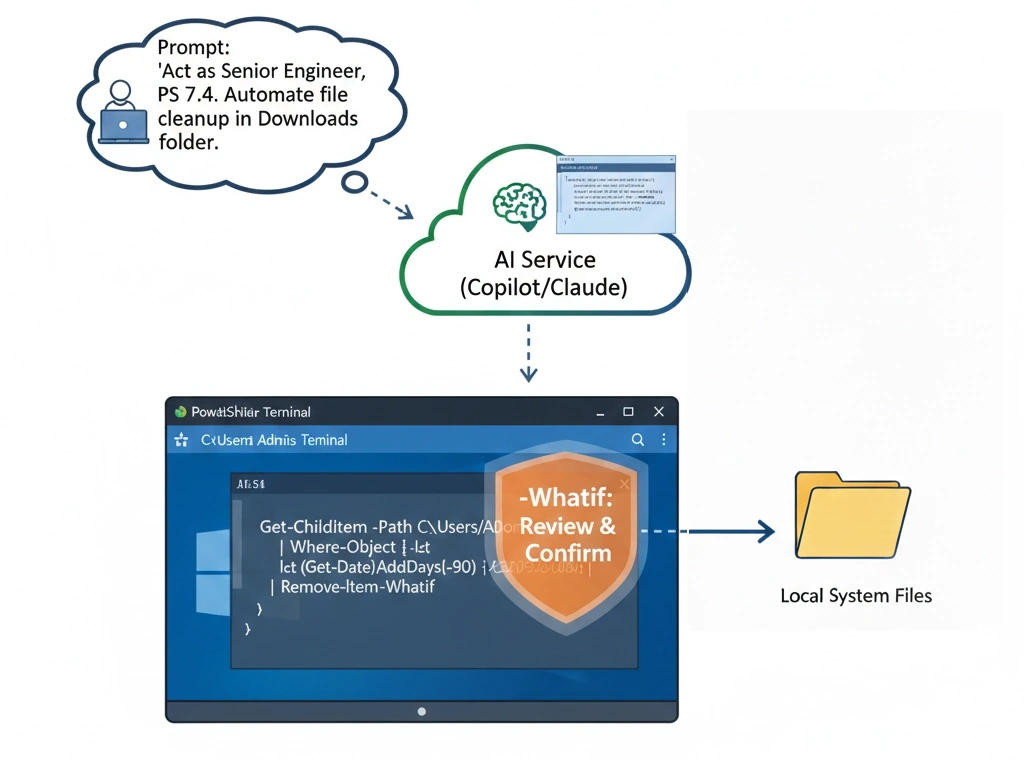
- The
-WhatIfRule: Always ask the AI to include the-WhatIfparameter for any cmdlets that modify files, users, or services. - The Security Audit: Ask: “Review this script for security vulnerabilities, specifically checking for plain-text credentials or unsafe execution policies.”
🚀 Quick Win: The “Downloads Triage”
Want to see the power of PowerShell immediately? Run this prompt to clean up your computer.
The Prompt:
“Write a PowerShell script that scans my ‘Downloads’ folder. Move all .pdf files to a ‘Documents’ folder, all .jpg files to an ‘Images’ folder, and delete any file older than 30 days. Add a -WhatIf safety check so I can see what it will do first.”
🚦 What AI Can’t Do (Yet)
While AI is a force multiplier, it has three critical blind spots:
- Infrastructure Context: AI doesn’t know your specific AD structure. A command that works in a lab might fail in your production forest.
- Implicit Destructive Action: AI may suggest a
Remove-Itemcommand that is logically catastrophic if your filters aren’t surgical. - “Invented” Cmdlets: AI loves to hallucinate cmdlets that sound real (e.g.,
Get-ActiveUserSession). Always verify a cmdlet exists. If you see an error, paste it back into your AI and ask it to validate the syntax.
💡 Practical Use Cases
These are the tasks where AI-first PowerShell scripting pays off fastest:
- Active Directory Management: “Create 50 users from a CSV and place them in OUs based on their Department column.”
- Log Triage: “Parse 5GB of IIS logs and extract only the 404 errors that happened between 2 AM and 4 AM.”
- Cloud Automation: “Identify all untagged Azure resources and send a report to the admin email.”
- File & Folder Cleanup: “Move files older than 30 days to an Archive folder and log every action.”
- System Reporting: “Scan a directory and output a CSV of file names, sizes, and last-modified dates.”
For copy-ready prompts for all of these, see PowerShell AI Examples.
🗂️ What Changed from 2025 to 2026?
If you’ve been searching for PowerShell AI tools for a while, here’s what’s actually different this year:
- Microsoft AI Shell was archived in early 2026. It may still run for basic error analysis, but it’s no longer maintained and shouldn’t be part of any long-term workflow. If you’ve seen it recommended elsewhere, that advice is outdated.
- Claude dropped version suffixes. Older guides reference “Claude 3.5” — the current Claude is simply Claude, and it’s significantly more capable for long-form script generation than earlier versions.
- Cursor matured into a first-class PowerShell environment. In 2025 it was primarily a Python/JS tool; its PowerShell support and Windows integration have improved substantially.
- The “just use ChatGPT” era is over. In 2025, most guides defaulted to ChatGPT. In 2026, the right tool depends on your task — which is exactly what this page is for.
❓ Frequently Asked Questions
What is the best AI for PowerShell scripting in 2026?
As of 2026, Claude is the top choice for complex, multi-step scripts where logic accuracy matters most. Copilot is the best free option for Windows users who need quick answers in the browser. Cursor wins for power users building full modules in an IDE. The short answer: it depends on your task — see the rankings table above.
What’s the best free AI for PowerShell scripting?
Microsoft Copilot is free, built into Windows, and handles most everyday PowerShell tasks well — especially when you give it context about your environment and PowerShell version. Gemini (free tier) is also solid for researching community scripts and understanding obscure error codes.
Is ChatGPT good for writing PowerShell scripts?
Yes, especially for quick snippets, one-liners, and debugging specific .NET error codes. It’s not the top pick for long or complex scripts — Claude handles those better — but it’s fast and capable for most everyday PowerShell tasks.
Do I need to know PowerShell to use AI for scripting?
No. That’s the whole point. You describe what you want in plain English, and the AI writes the script. You do need to understand what the script will do before you run it — but you don’t need to write or memorize syntax. See the AI PowerShell Script Generator for a step-by-step workflow.
What PowerShell version should I use with AI?
PowerShell 7 (the current cross-platform version) is the best choice for AI-assisted scripting — it’s actively maintained and AI tools have the most training data for it. PowerShell 5.1 is still common in enterprise Windows environments and works fine, but always tell your AI which version you’re on so it generates compatible syntax.
How do I run an AI-generated PowerShell script safely?
Always ask for a Dry Run version first using -WhatIf — this shows you what the script would do without actually doing it. Then ask the AI to explain the script back to you in plain English before you run anything. Never skip this step for scripts that move, delete, or modify files.
Can AI fix a PowerShell script that’s throwing errors?
Yes — and it’s one of the most useful things AI does. Copy the full error message and the script, paste both into your AI, and ask it to explain the error and fix it. Claude and Copilot are both strong at this. See the debugging loop in the AI PowerShell Script Generator for the exact prompt to use.
Can AI write PowerShell scripts for Active Directory or Azure?
Yes — but you need to tell it your environment upfront. For AD scripts, specify your domain structure and that you have the ActiveDirectory module installed. For Azure, specify the Az module and include Connect-AzAccount in your requirements. AI will hallucinate plausible-sounding cmdlets if you leave out context — grounding it first avoids that. See
PowerShell AI Examples for copy-ready prompts for both.
💬 More questions? See the AI FAQ: Technical & Automation for quick answers.
🧭 Next Steps
- Check out CLI Tricks for more terminal-specific AI hacks.
- Explore DevOps Automation to see how to run these scripts in GitHub Actions.
- See our Automation Examples for more specific ideas on automation.
- Explore Low-/No-Code Automation Examples if you want automation without writing scripts.
- See the Best AI Tools Guide for a broader look at the top tools across every workflow.
- AI PowerShell Script Generator to generate safe scripts step‑by‑step.
- PowerShell AI Examples for real, copy‑ready prompts and scripts you can generate with AI.
- Run AI Locally (Privacy & Offline Control) if you want to generate scripts without sending data to the cloud.
Safety Reminder: Never run AI-generated code in production without testing it in a sandbox environment first. Always use
-WhatIf.